Written for Scio, November 20269 min read
How a learning track works: from a goal to a proof page
A chatbot gives you an answer you forget by next week. A learning track turns what you want to learn into a plan, teaches it in small steps, checks in writing that you understood each topic, and keeps what you passed on a page you can share. Here's every part of it.
Build your track
On your home page, choose Learning Track and type what you want to learn. A few words are enough; adding your level and a timeframe (“beginner, 8 weeks”) gives a better plan.
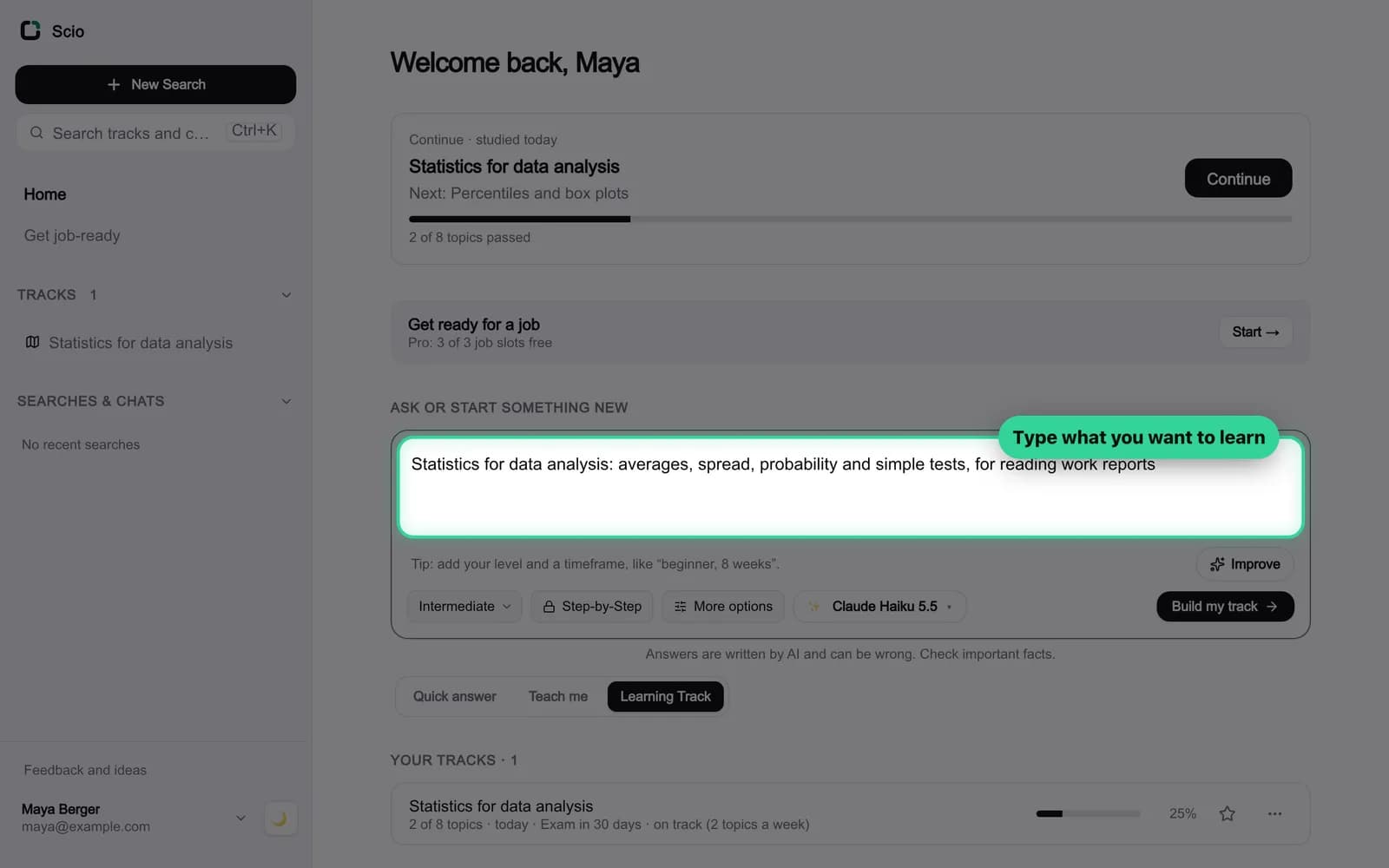
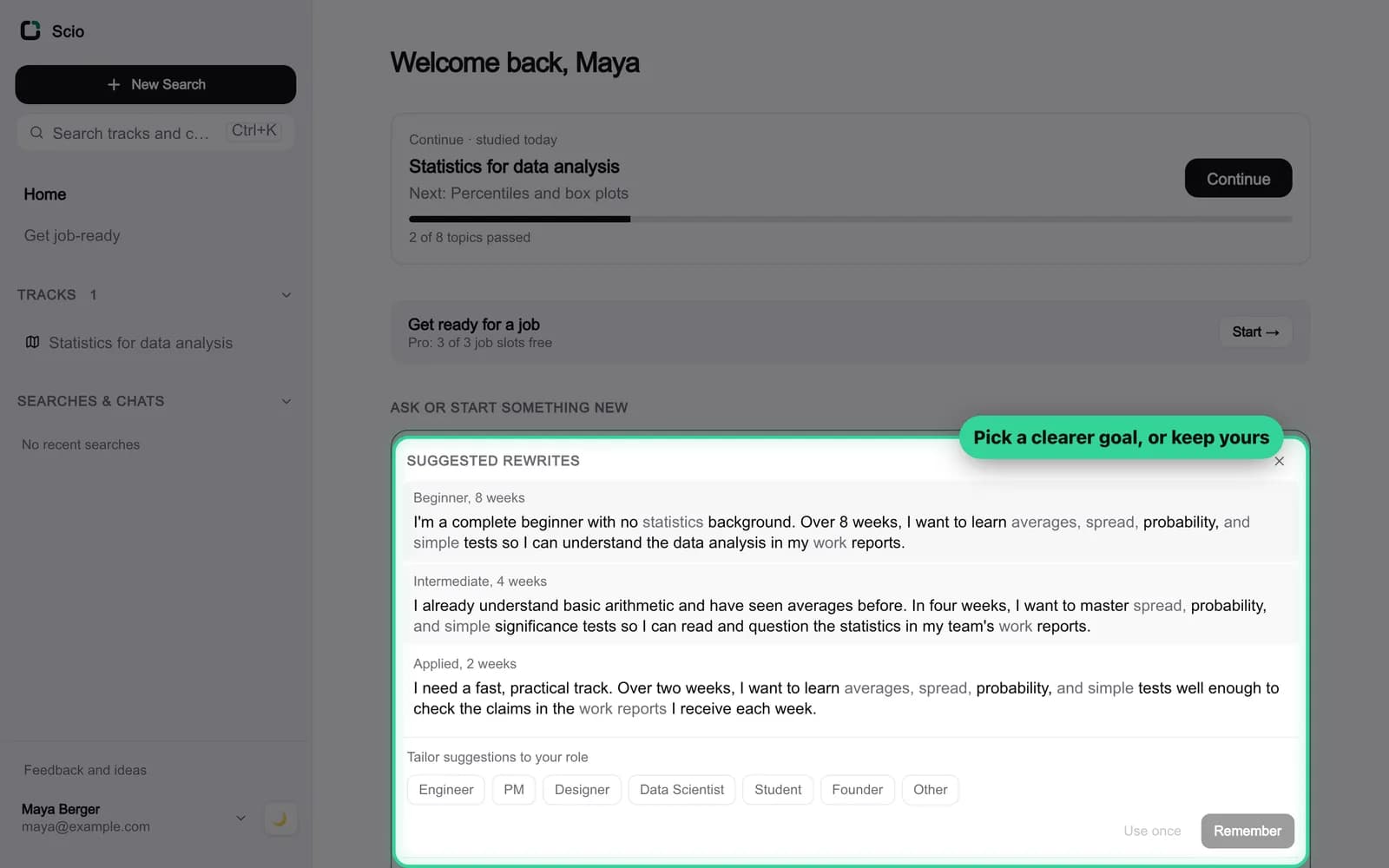
Not sure how to put it? Press Improve. Scio suggests clearer versions of your goal; pick one, or close the list and keep yours. You can undo a pick.
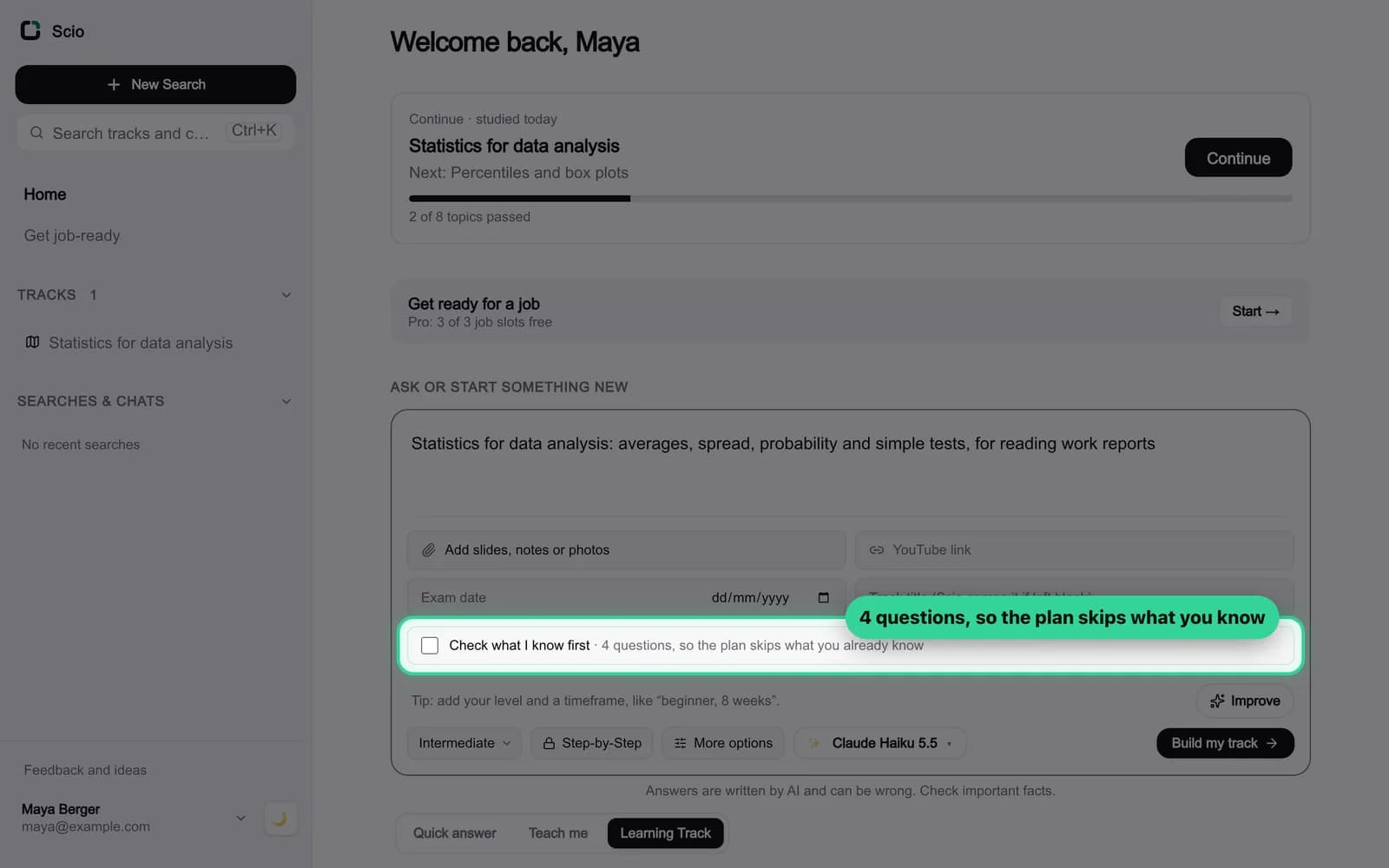
Under More options you can add up to 5 files (slides, notes, photos, PDF, Word or subtitles) or a YouTube transcript, so the plan follows your course. You can also set an exam date and a title, and switch on “Check what I know first”: 4 questions, about a minute, so topics you already know become a short review.
Step-by-Step opens each topic when you pass the one before it. Flexible lets you jump to any topic. You can switch later in the roadmap.
See where you are
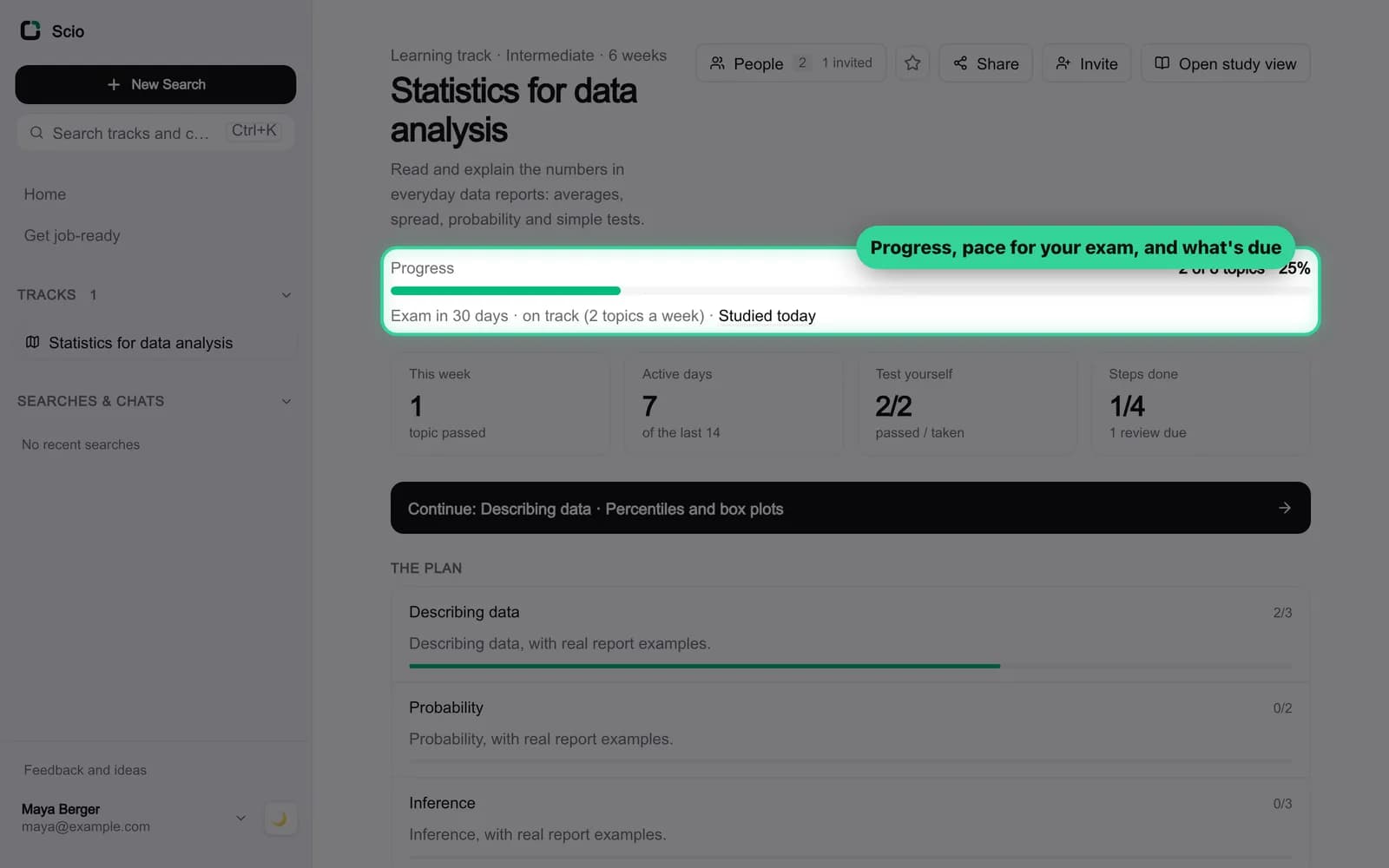
The track's home shows your progress, whether you're on pace for your exam date, active days, the checks you've passed and how many reviews are due. One button takes you to the next topic.
Learn in small steps
Each topic is split into a few steps. The tutor teaches one at a time; when you've got it, press Done, next step. Ask the tutor anything in the box below the lesson, or challenge what it said.
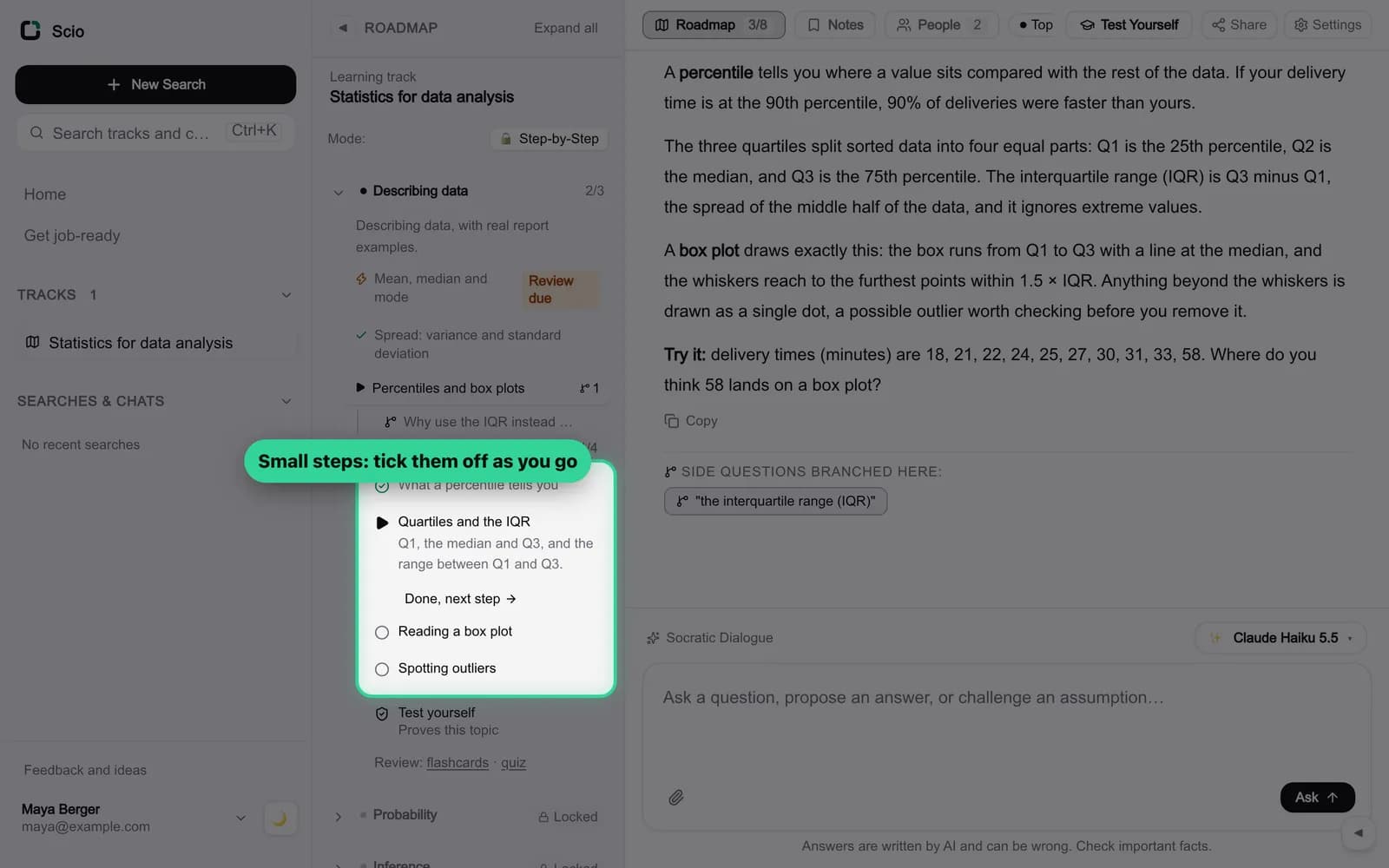
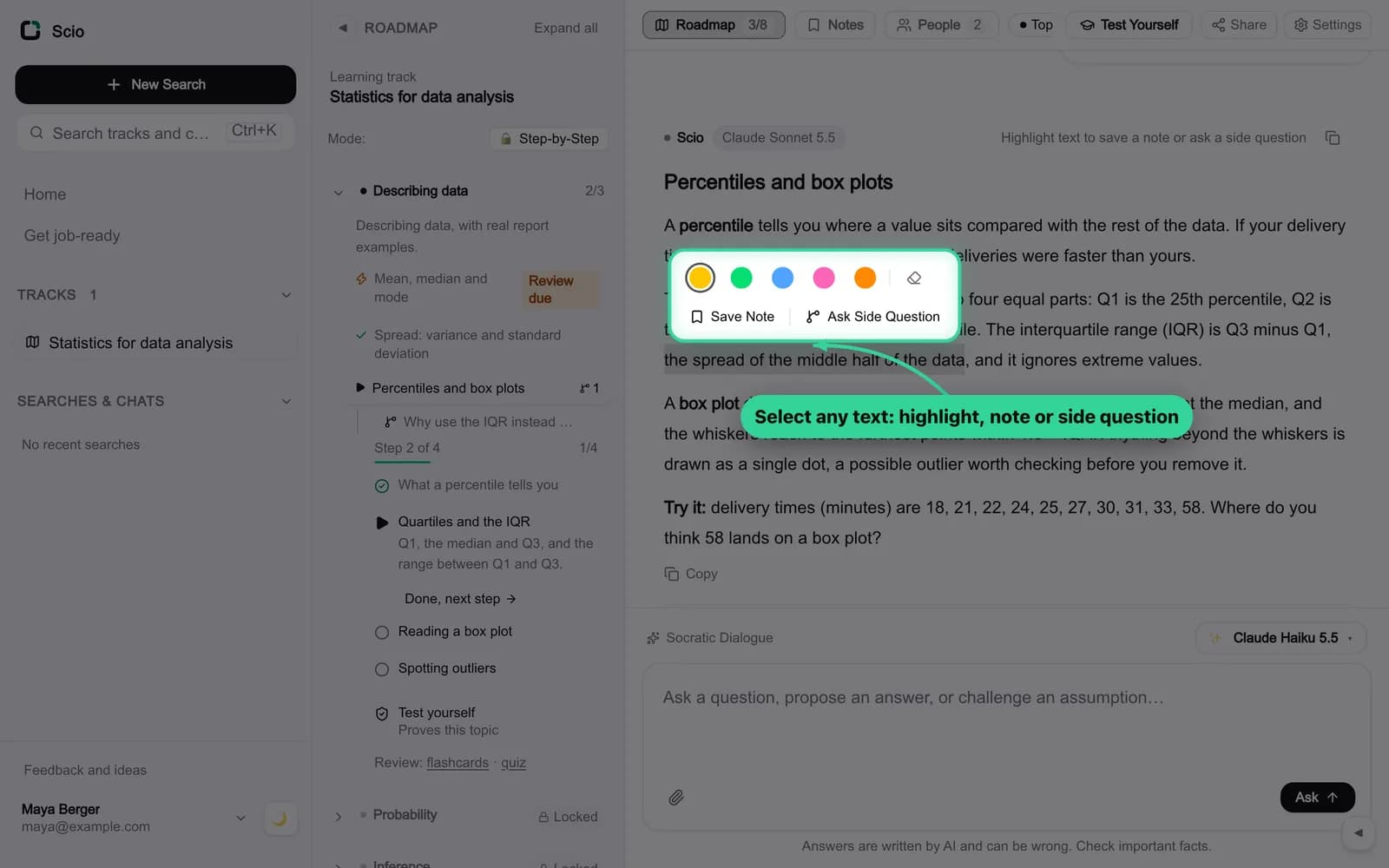
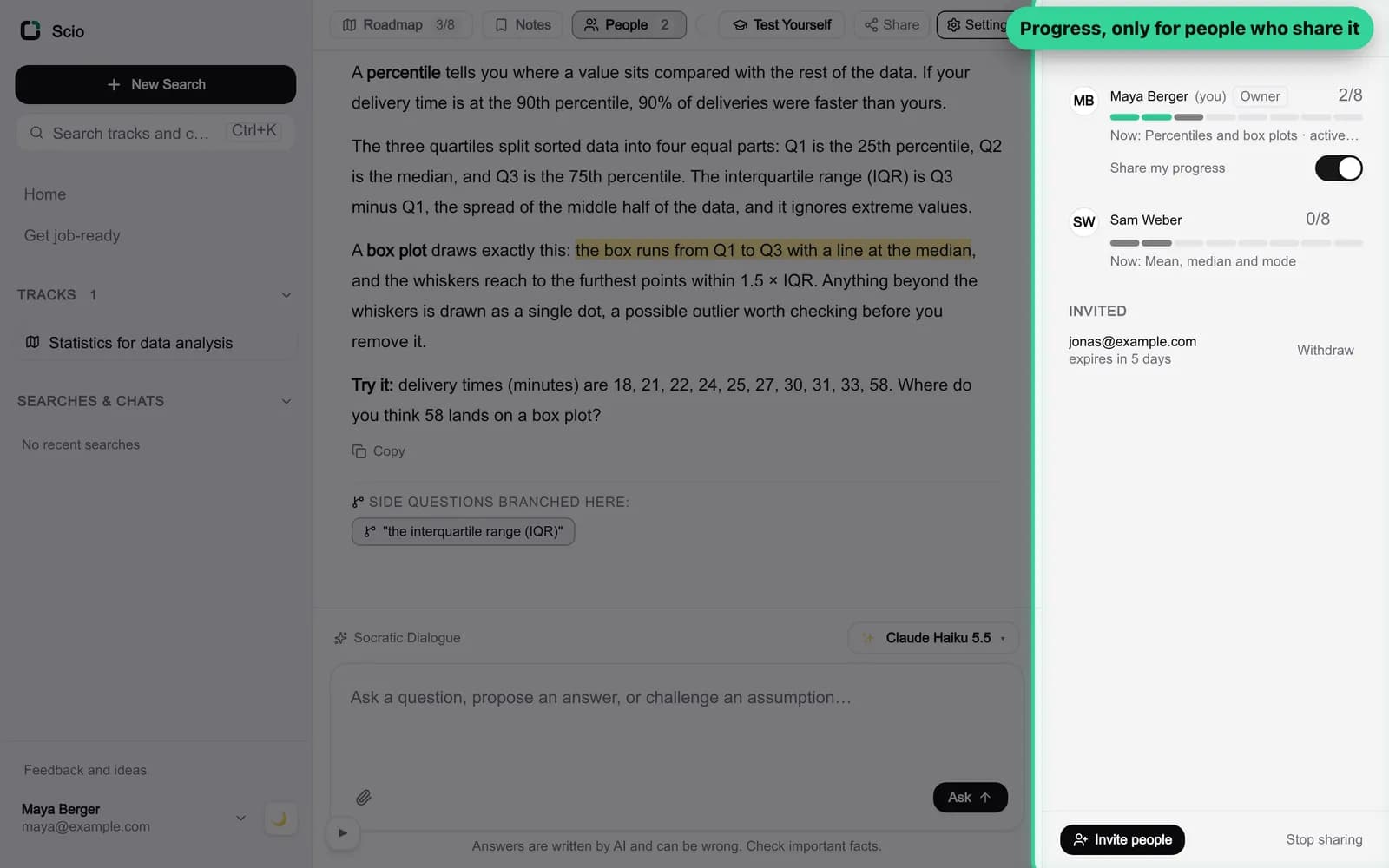
Highlight, save notes and ask side questions
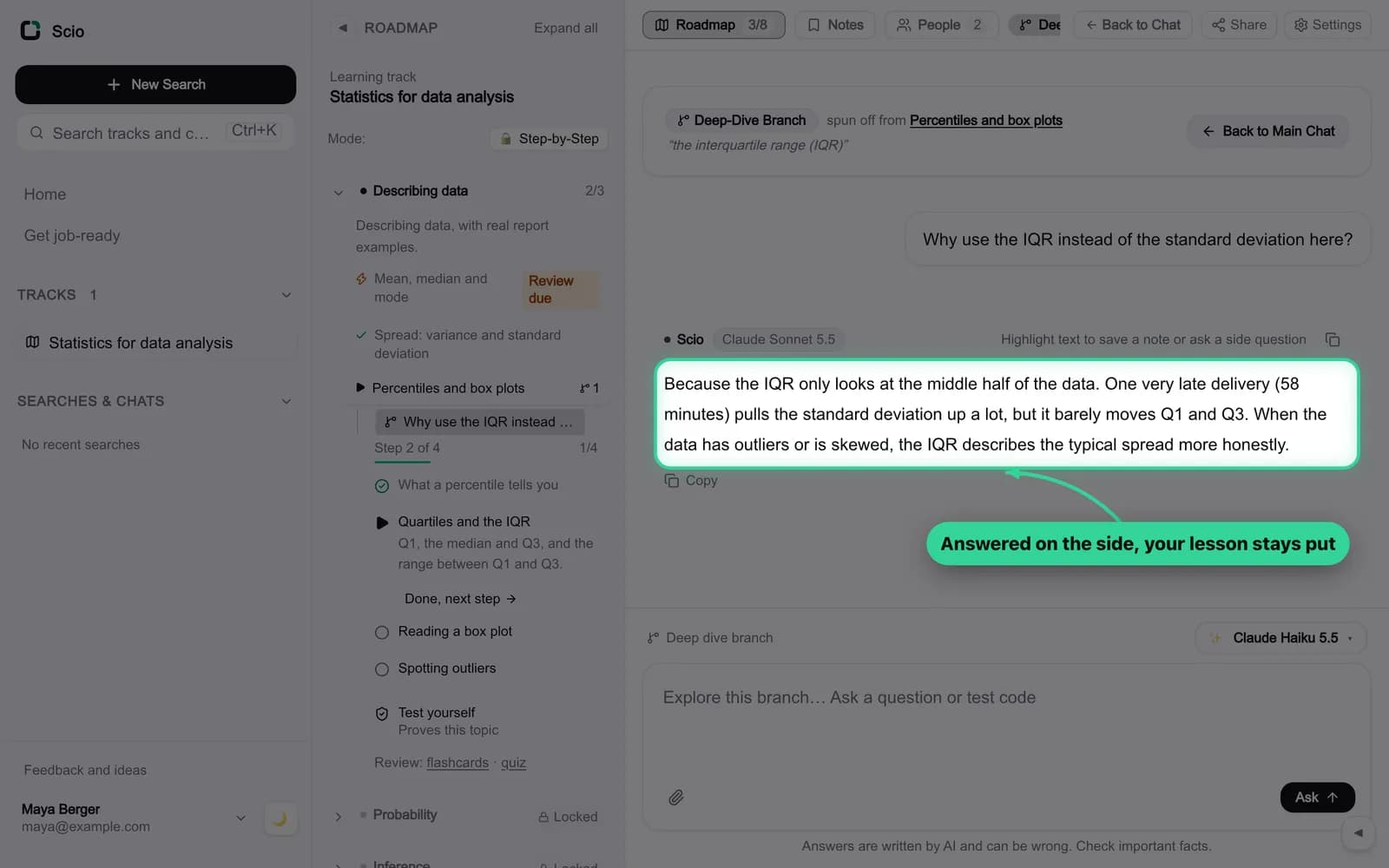
Select any text in a lesson and a small toolbar appears: five highlight colours, Save Note and Ask Side Question.
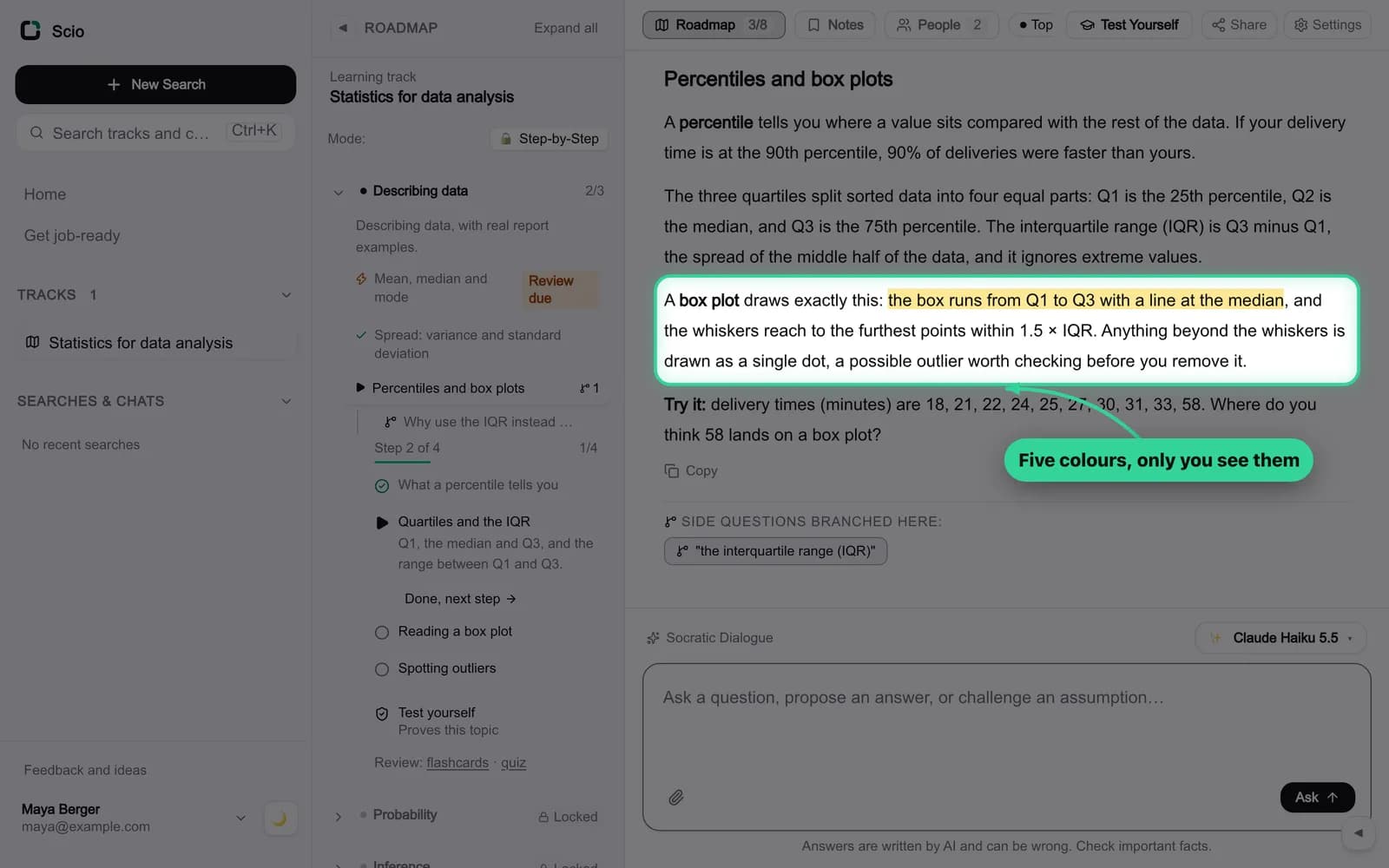
Highlights stay on the lesson, in your colour, and only you see them.
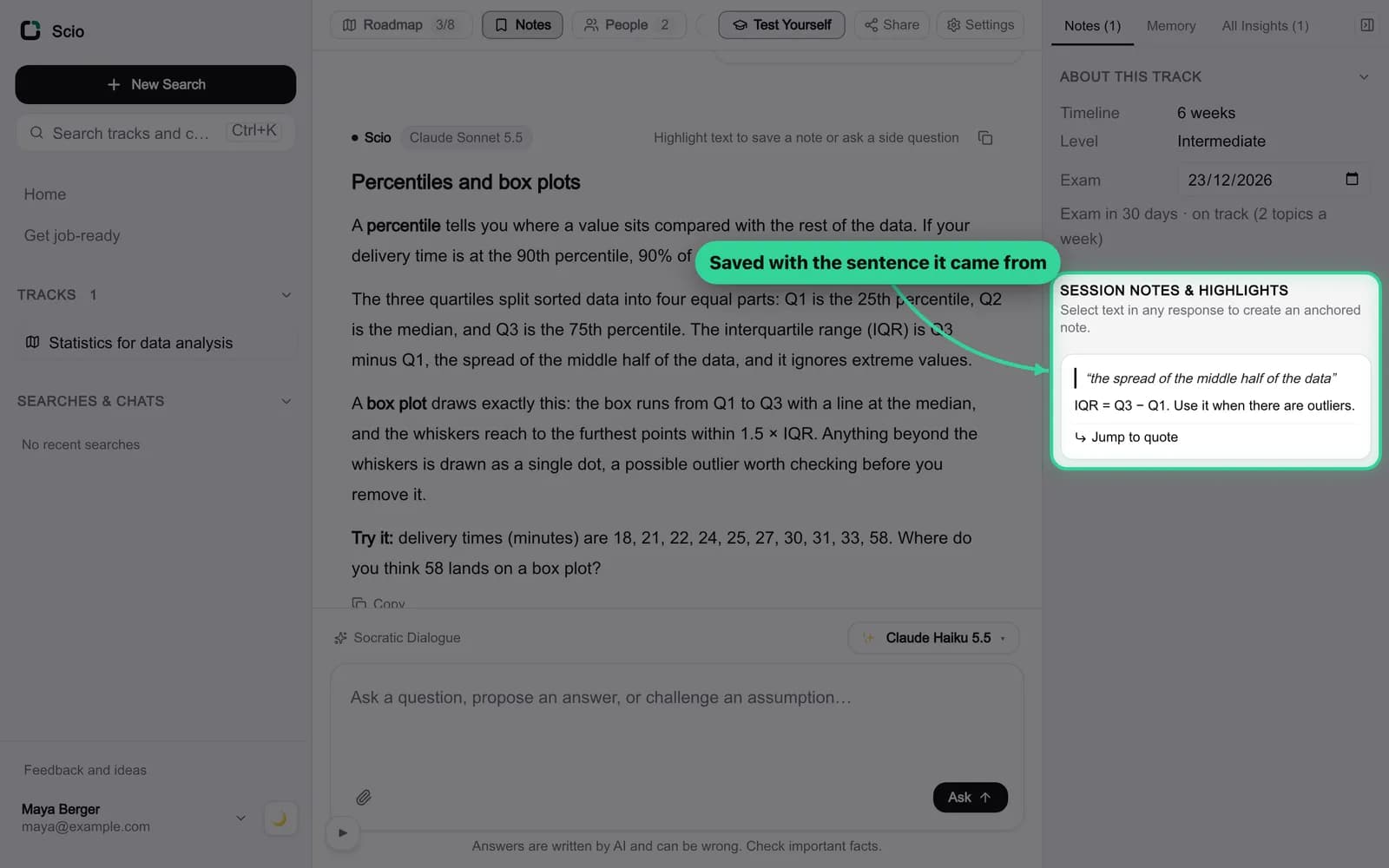
Save Note keeps the sentence with a note of your own, in the Notes panel. Notes stay with the track, and Settings → Download for Obsidian gives you the plan and your notes as Markdown files.
Ask Side Question opens a separate thread about the words you selected, so a tangent doesn't bury your lesson. The lesson lists its side questions under “Side questions branched here”, and Back to Chat returns you.
Practise with flashcards and a quiz
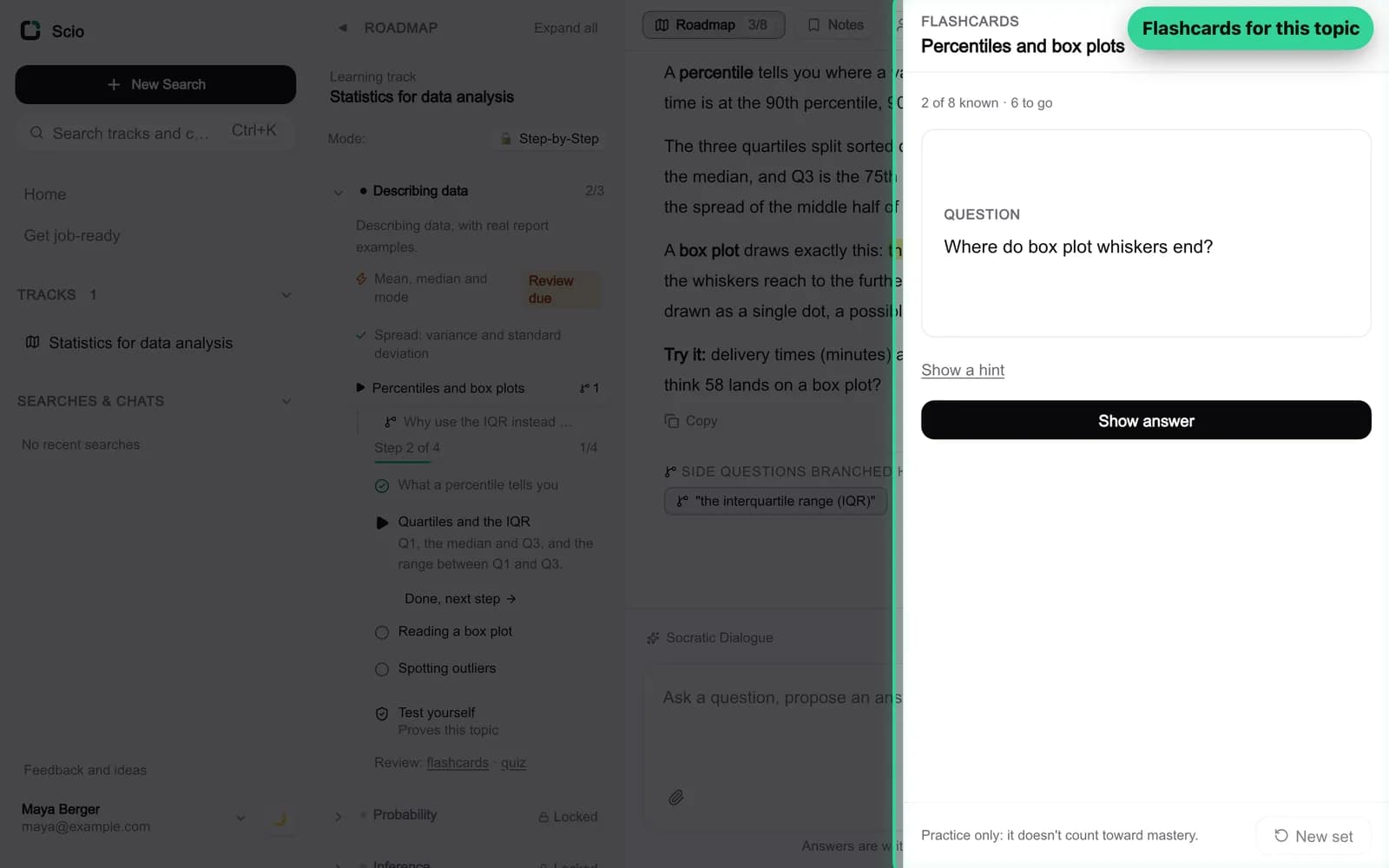
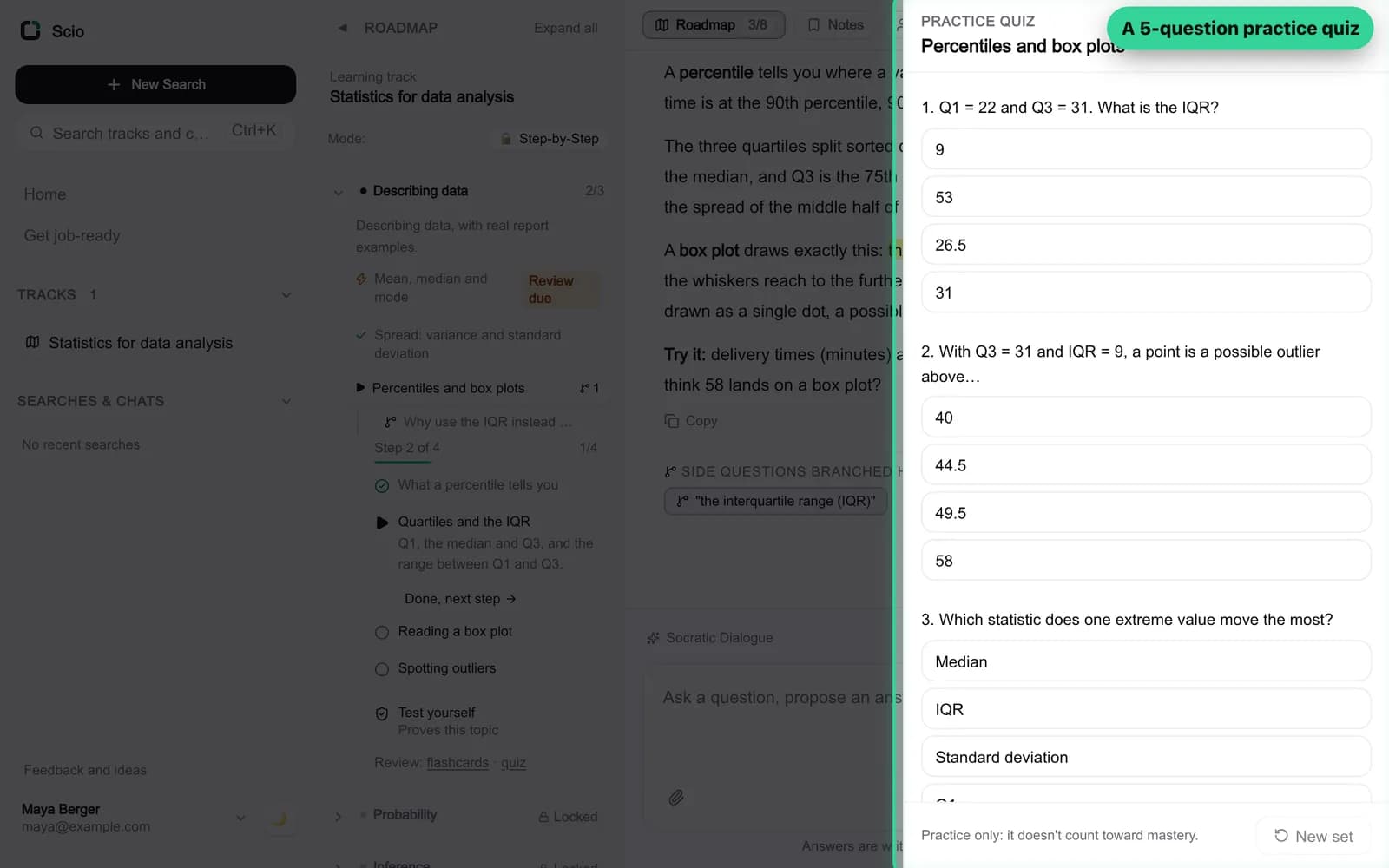
Under each topic, Review: flashcards · quiz opens practice in a side panel, so the lesson stays in view. Flashcards come in sets of 8 to 15, the quiz has 5 questions with an explanation for each answer, and you can make a new set every 10 minutes. Practice never counts toward passing the topic.
Mark a topic done: Test yourself
A topic counts as done only when you pass Test yourself. You answer three written questions (explain the idea, apply it to a new case, defend a choice) in 30 minutes, then one follow-up question about your own answer in 15. You pass with at least two answers fully right, none wrong, and a right follow-up. The next topic then opens.
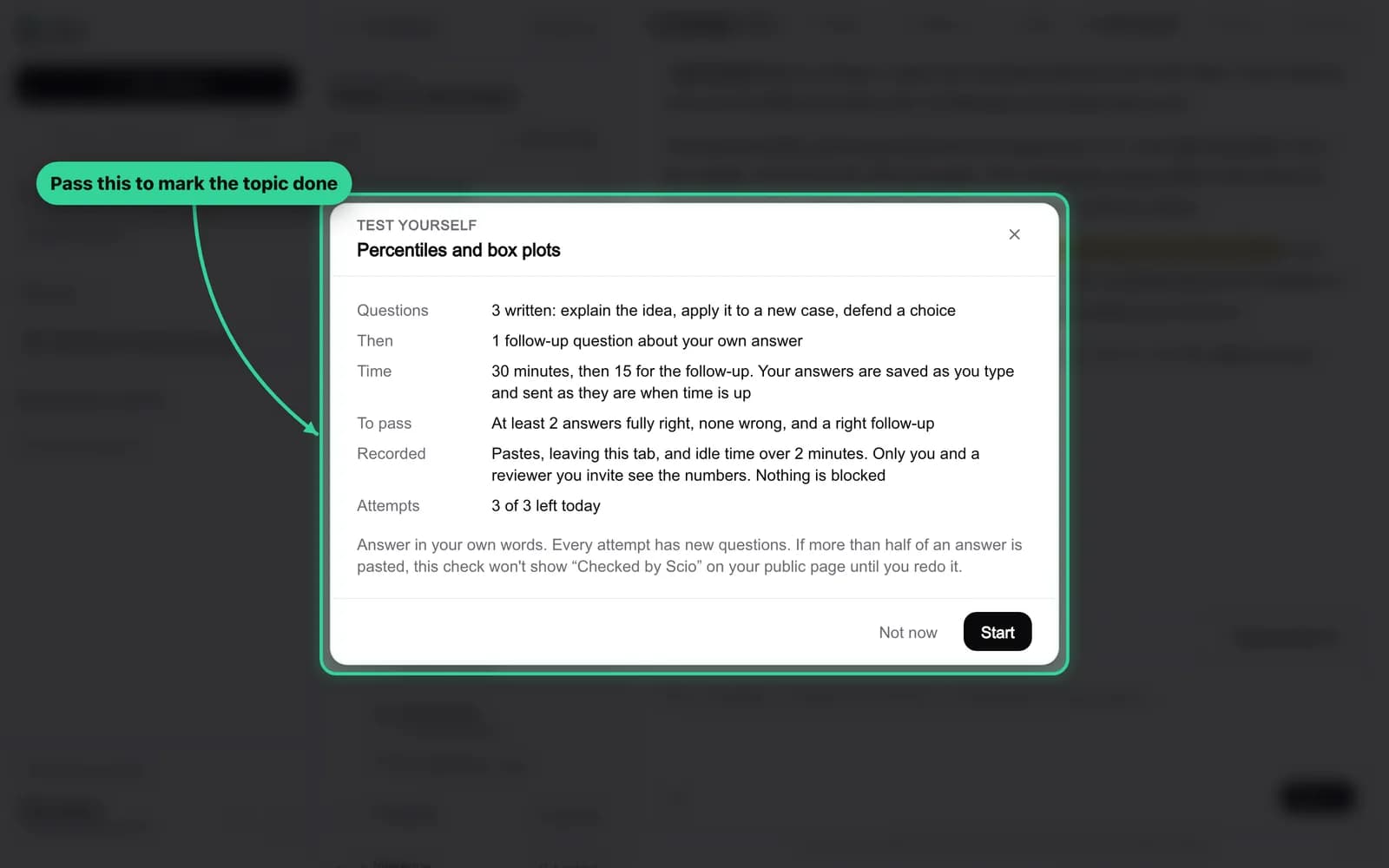
Didn't pass? Read the feedback, talk it through with the tutor, then try again in 10 minutes with new questions. You have 3 attempts per topic a day. Pass again at least 3 days later and the topic shows as Confirmed.
Come back to what you passed
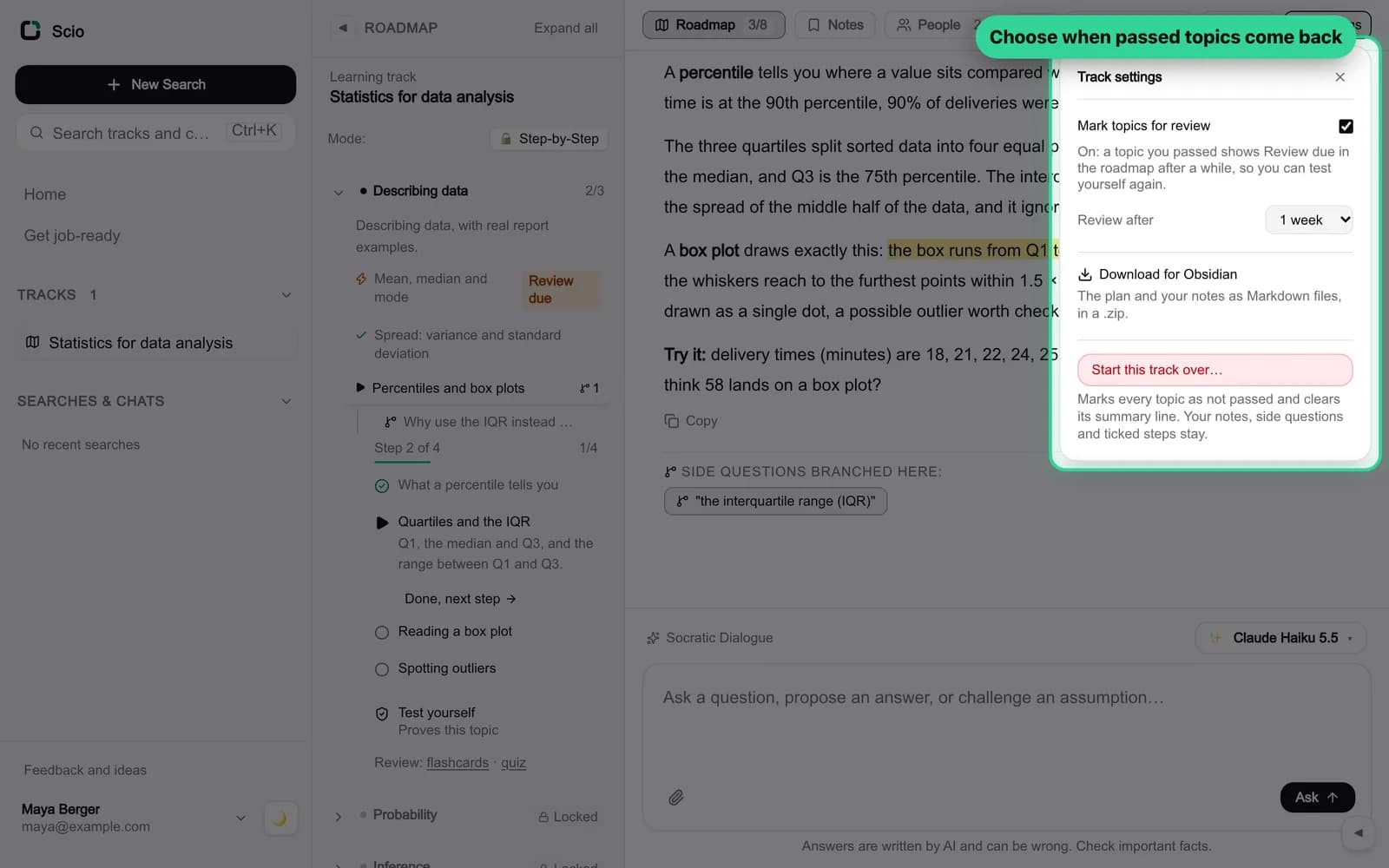
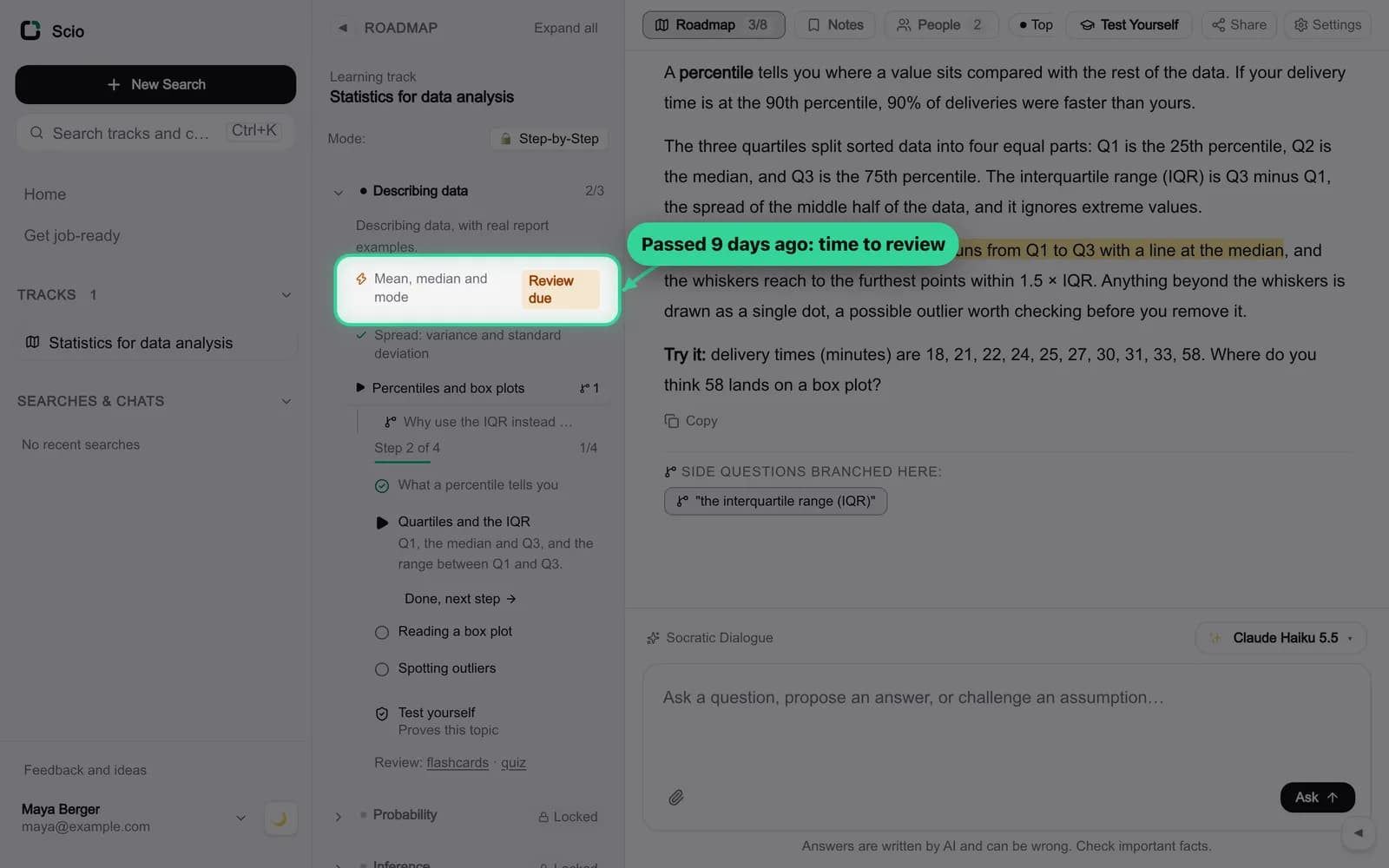
Switch on Mark topics for review in Settings and choose when: after 5 days, 1 week, 2 weeks or 1 month. When that time has passed, the topic shows Review due in the roadmap, and Test yourself is how you clear it. Scio doesn't send reminders; the roadmap and the home page's “reviews due” count show what's due.
Change the plan: Adapt plan
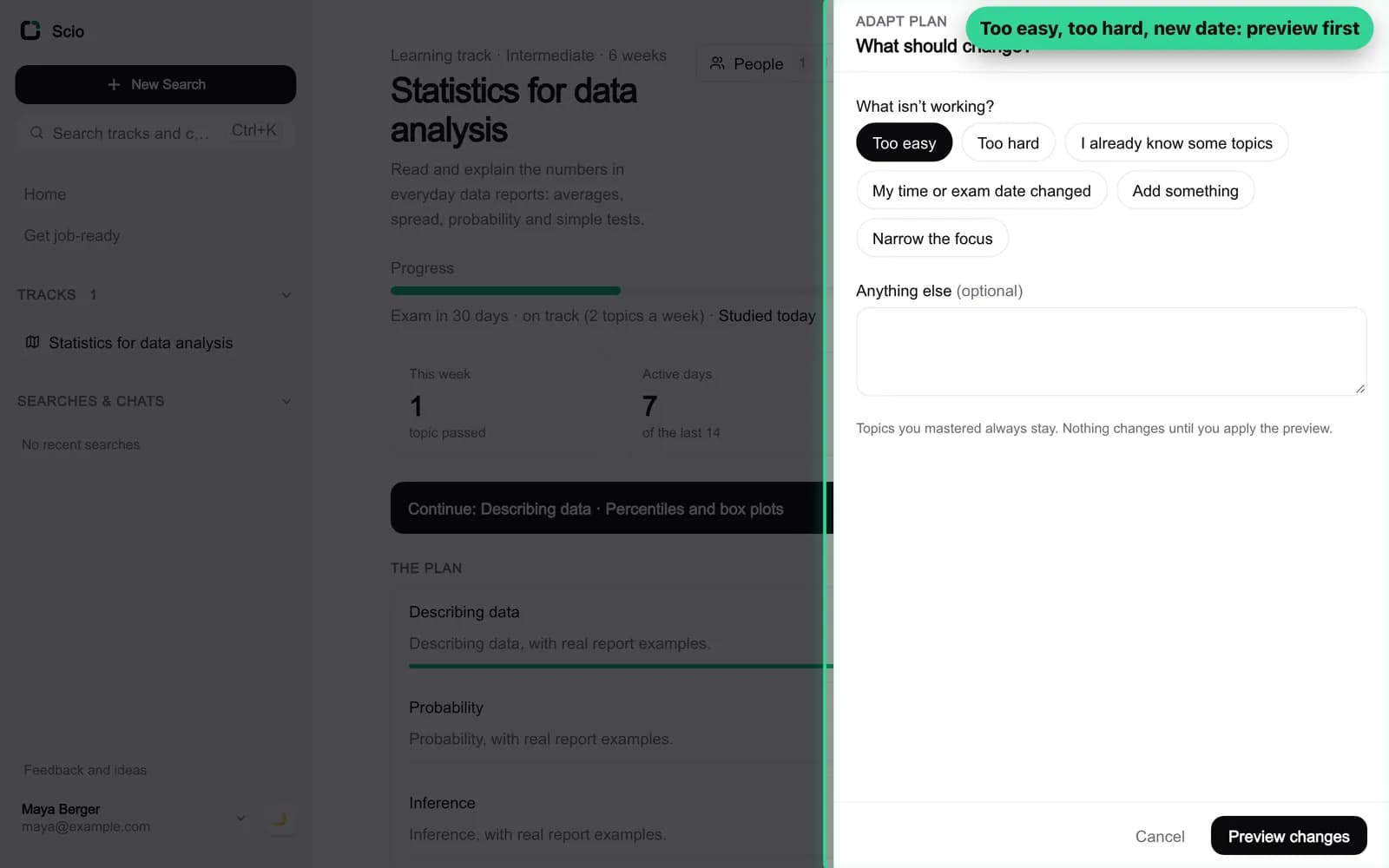
If the plan doesn't fit, press Adapt plan on the track's home and say what isn't working: too easy, too hard, you already know some topics, your time or exam date changed, you want to add something, or narrow the focus. You see the new plan first, with what stays, what's new and what's removed. Topics you passed always stay, and nothing changes until you apply it.
Once other people are on the track, the plan is fixed for everyone, so Adapt plan isn't offered.
Learn with others
Press Invite and enter someone's email. Each person gets their own copy of the track and learns at their own pace, on their own Scio plan. The link only works for that address and is valid for 7 days, and up to 20 people can join a track.
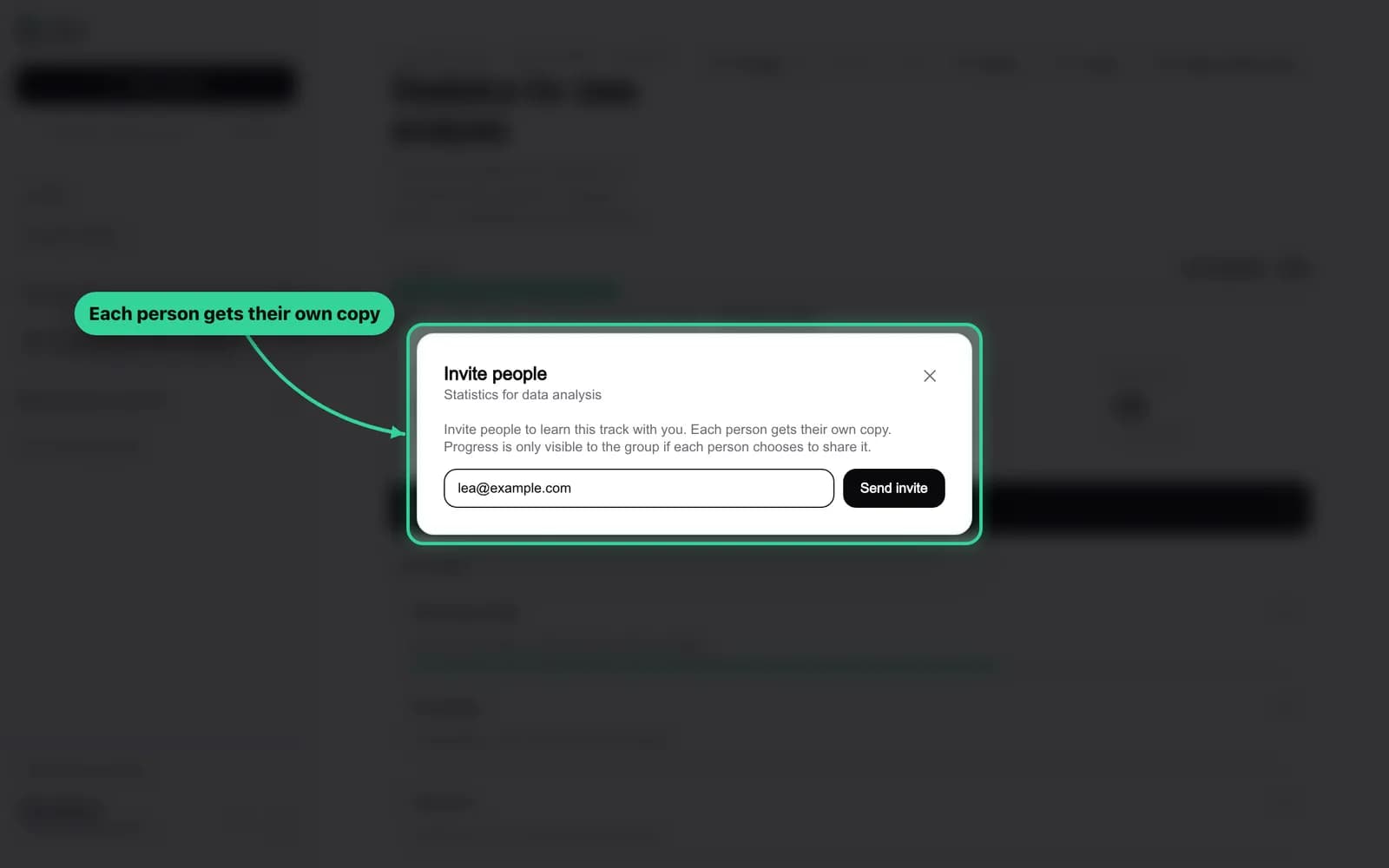
Progress stays private until each person chooses “Show my progress to the people on this track”. Then the others see their passed topics and the topic they're on. Chats and notes always stay private.
Show what you've learned
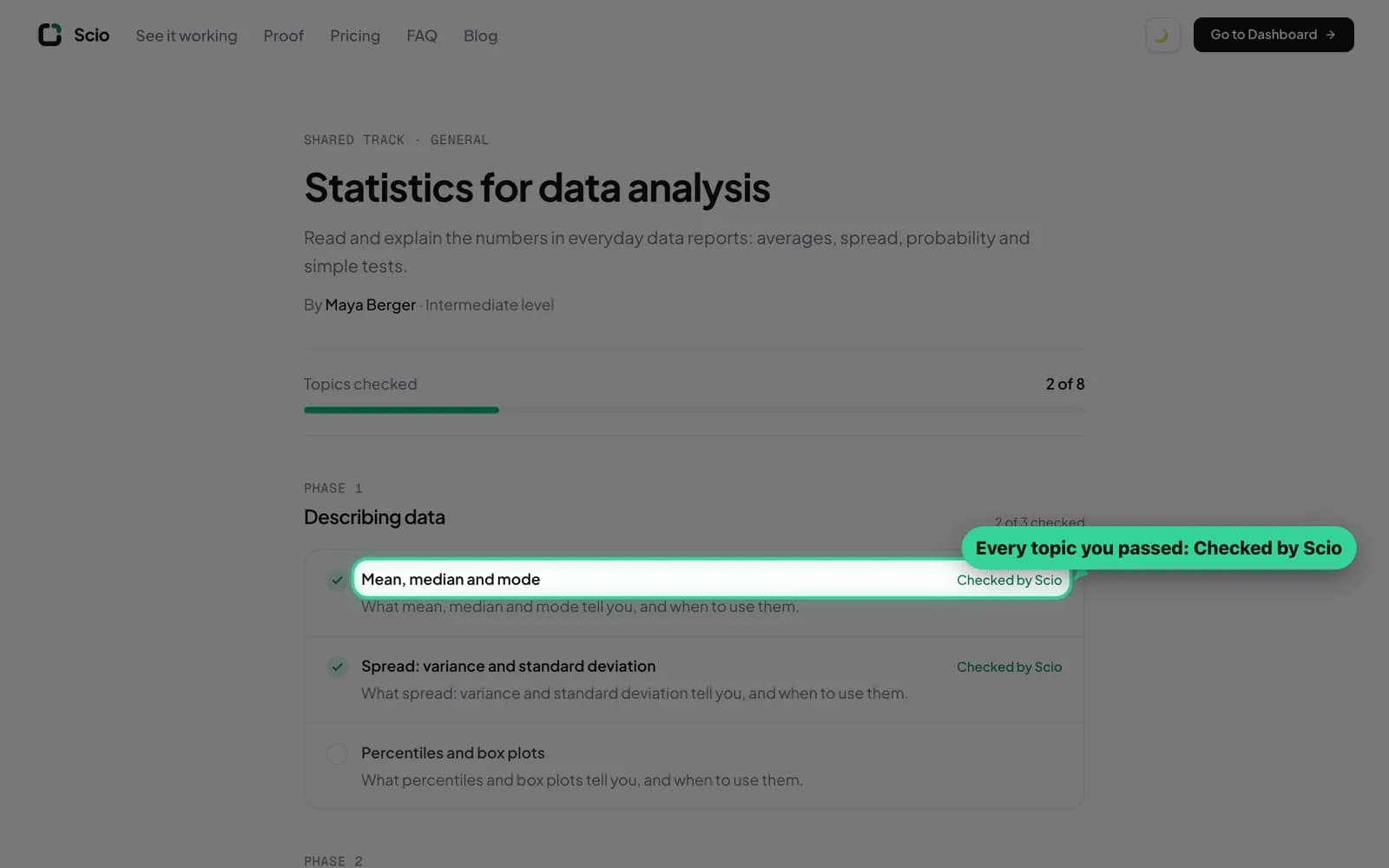
Share turns your track into a proof page: every topic you passed is marked Checked by Scio. Answers stay hidden unless you switch on “Show my checkpoint answers”, and the grading rubric is never shown. Proof pages are hidden from search engines, so only people you send the link to see them. You can take the page down at any time.
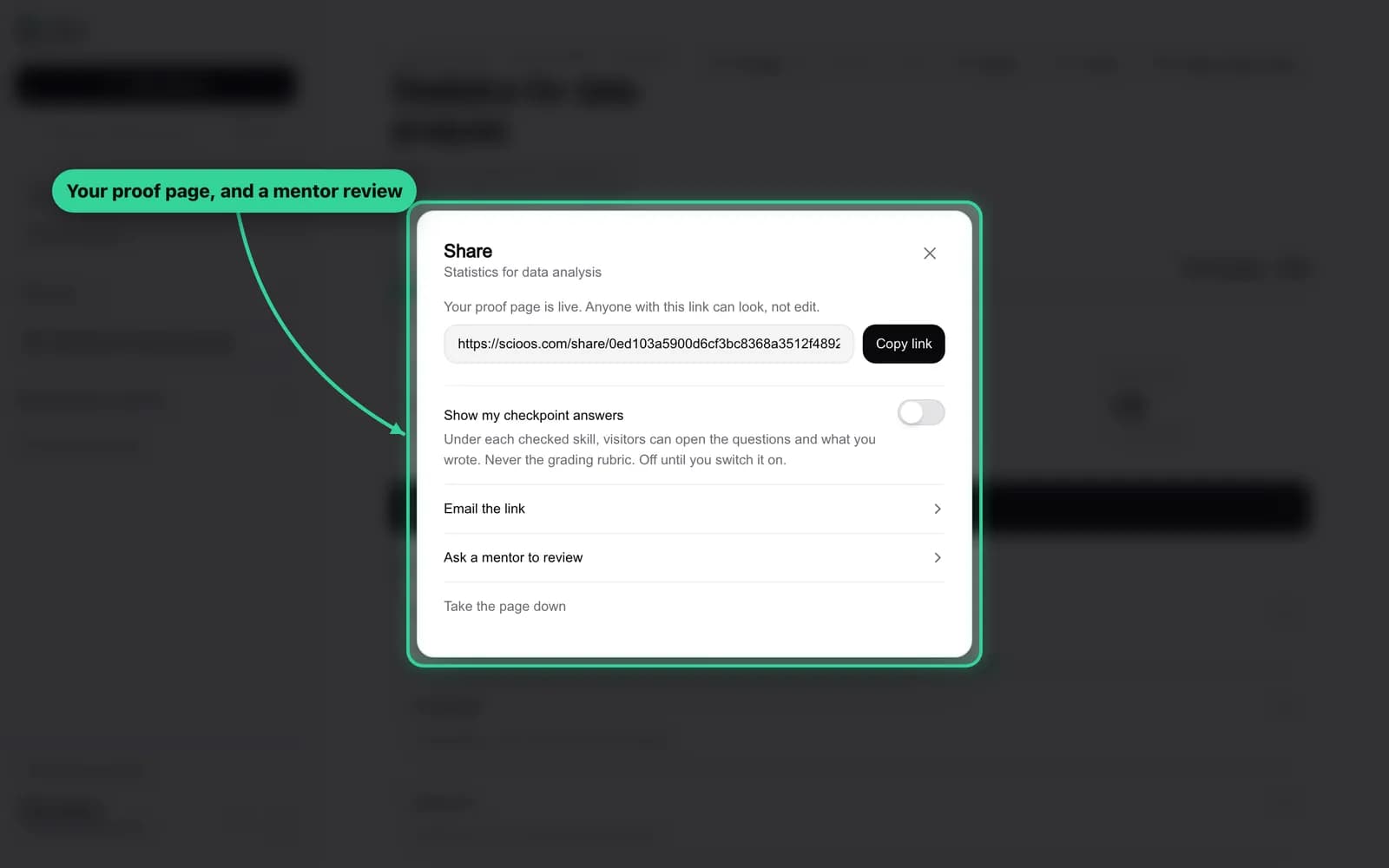
On Pro you can also Ask a mentor to review: a coach or teacher sees your passed checks and answers, and if they approve, your proof page shows “Reviewed by” their name.
What's free
| Free | Pro | |
|---|---|---|
| Learning tracks, steps and the tutor | While your free credit lasts | Included, with a choice of top AI models |
| Test yourself, flashcards and quiz | Yes | Yes |
| Highlights, notes, side questions | Yes | Yes |
| Invite people, share progress | Yes | Yes |
| Proof page | Yes | Yes |
| Ask a mentor to review | No | Yes |
Free, no card. Sign up, then type what you want to learn.